
Say what you want. Grid Getter sets it up.
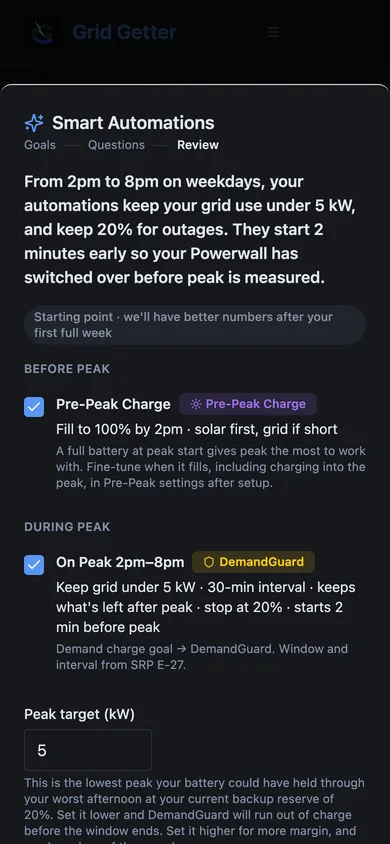
Pick your goals and answer up to three questions. We build the automations from your rate plan and your battery, show you every one before it's created, and check them each night.
Every setting can look right and the rule can still fail.
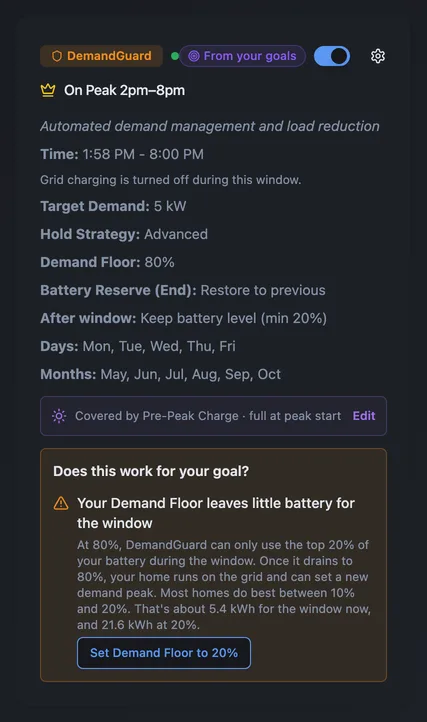
One customer set DemandGuard with an 80% floor, a 5 kW target and Storm Watch on. None of those is wrong by itself. Together they left the battery with almost nothing to give during peak. Starting from the goal lets us check the settings against each other.
Illustration for one 13.5 kWh Powerwall. The figures are typical, not this customer's bill.
What each goal builds
Your rate plan decides the windows. Your goals decide what runs in them.
| You pick | We create | In plain words |
|---|---|---|
| Cut my demand charge | DemandGuard for each peak window, plus Pre-Peak Charge. Battery Protection all day if your plan can't run Pre-Peak. | Keeps your grid use under a kW target you can see and change. |
| Cut my peak-rate energy cost | Peak Time for each peak window, plus Pre-Peak Charge. Battery Protection all day if your plan can't run Pre-Peak. | Runs the house on battery through peak, down to your reserve. |
| Keep backup for outages | Sets the reserve on the rules above. On its own, Battery Protection. | The reserve you choose is where every rule stops. |
| Just protect my battery and leave me alone | Battery Protection only | Keeps the battery from running too low. Nothing runs during peak. |
Picked both cost goals? We ask which matters more. Not sure at all? When you sign up, pick "I'm not sure yet" and we start from your rate plan.
Your reserve, in kWh you can picture
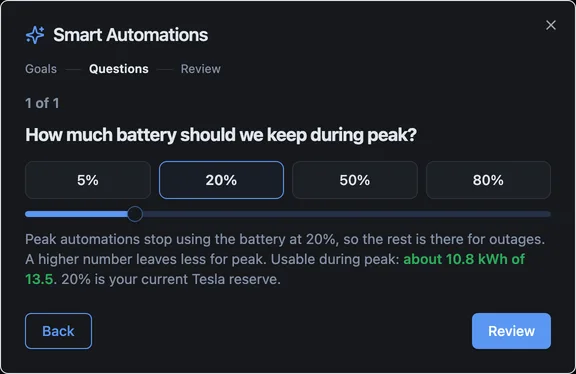
A percentage doesn't tell you much about the evening. So when you pick a reserve, we show what's left for peak: "Usable during peak: about 10.8 of 13.5 kWh."
The other questions only appear when your goals need them: which matters more if you picked both cost goals, how low to let the battery go if you only want it protected, and whether your plan has a demand charge if we can't tell.
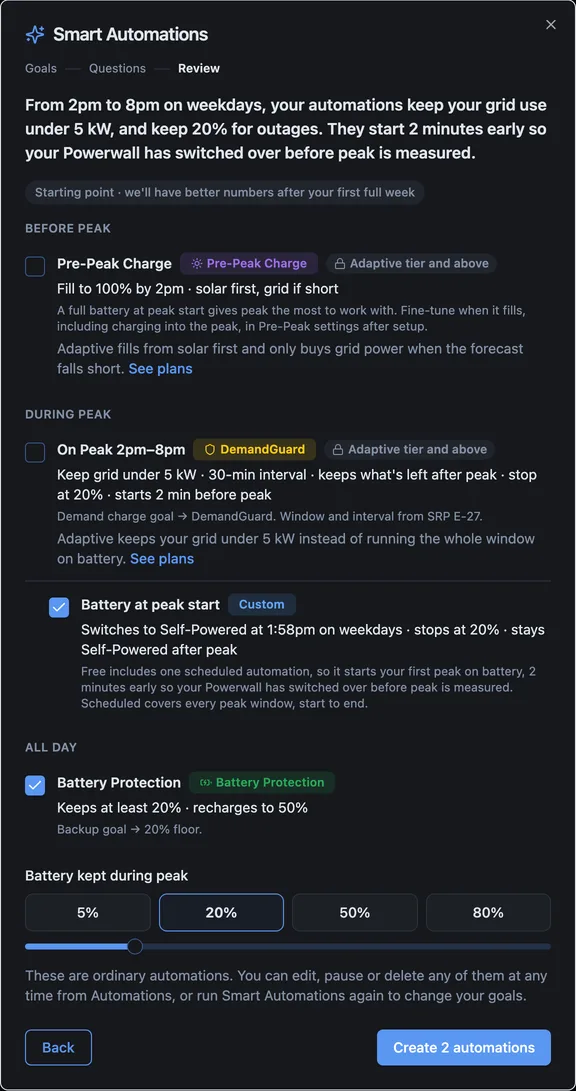
You see every automation before it exists
Each row says what it does and which answer it came from. Untick anything you don't want. If a row needs a plan you don't have, it stays on the list with an alternative you can run today.
- Adjust the demand target and reserve before creating
- They're ordinary automations afterwards
- Run it again any time as a check-up
Setup checks the rules you already have
Tell us your goals and we compare them with your existing automations. Where a rule works against what you chose, the rule's card says so, with a one-tap fix:
Run setup again and it spells out each difference: "Keeps 80% in reserve; you chose 20%." You decide whether to change it. Setup never changes an existing rule for you.
Smart Automations is free. What it creates depends on your plan.
| Created by setup | Free | Scheduled | Adaptive |
|---|---|---|---|
| Battery Protection | ✓ | ✓ | Pre-Peak Charge covers it, unless you pick Just protect |
| Pre-Peak Charge | — | Charge before peak instead | ✓ |
| Peak Time | Battery at peak start instead | ✓ | ✓ |
| DemandGuard | — | Peak Time instead | ✓ |
| Goal check on every rule | ✓ | ✓ | ✓ |
Charge before peak charges from the grid for the 2 hours before each peak, even on sunny days, because it can't read a solar forecast. Battery at peak start switches your Powerwall to Self-Powered with your reserve just before your first peak of the season. See pricing.
About Smart Automations
What if I don't know my goal?
Pick "I'm not sure yet" when you sign up. Grid Getter starts from your rate plan: the demand charge if your plan has one, peak-rate cost if not. Run Smart Automations again any time to change your goals.
Can I change what it built?
Yes. They're normal automations. Edit or delete any of them, or run Smart Automations again with different goals. It never changes an existing rule for you.
What if I already have automations?
Setup leaves them alone. Running it again marks rules that already match, spells out any setting that works against your goals, and offers Edit this rule. You choose whether to change it.
Does it need DemandGuard?
No. On Scheduled, setup uses Peak Time on each peak window and tells you what DemandGuard would add. On Free, it sets up Battery at peak start for your first peak, plus Battery Protection.
Tell it what you want your Powerwall to do.
Free on every plan. Takes a few minutes after you connect Tesla. Then Insights checks your last 30 days every night.